.png)
What Is an Ethernet Port? How Does It Work?

Real-time leak monitoring
Free leak monitoring
TL;DR
- An Ethernet port connects a device to a wired local network. A Copper Ethernet commonly uses an eight-position, eight-contact connector that most people call RJ45.
- A link runs only as fast as the slowest part of the channel, since both ports and the full cable path have to support the speed. Common property-network speeds are 10 Mbps, 100 Mbps, 1 Gbps, and 2.5 Gbps.
- Cat5e handles many Gigabit links, while Cat6 adds performance headroom and tighter crosstalk specifications. Power over Ethernet can carry data and electrical power to compatible devices through a single cable.
- SmartHQ™ Service uses an RJ45 cable between its module and an appliance service port, which is a service connection rather than an Ethernet network link.
What Is an Ethernet Port?
An Ethernet port is a physical socket that connects a device to a wired local area network, or LAN, and it carries network data through a compatible Ethernet cable. The port usually belongs to a network interface controller, or NIC, which converts device data into signals that can travel across the wired connection.
You will find Ethernet ports on routers, switches, computers, wireless access points, cameras, controllers, and gateways. In a property, they tend to connect fixed equipment that benefits from a dedicated cable path.
An Ethernet connection can work within a local network without providing internet access, because internet access also needs a router, an upstream connection, and the right configuration. The socket, the cable, and the internet service are separate parts of the system, and keeping them separate helps you diagnose the right component when a connection fails.
What Does an Ethernet Port Look Like?
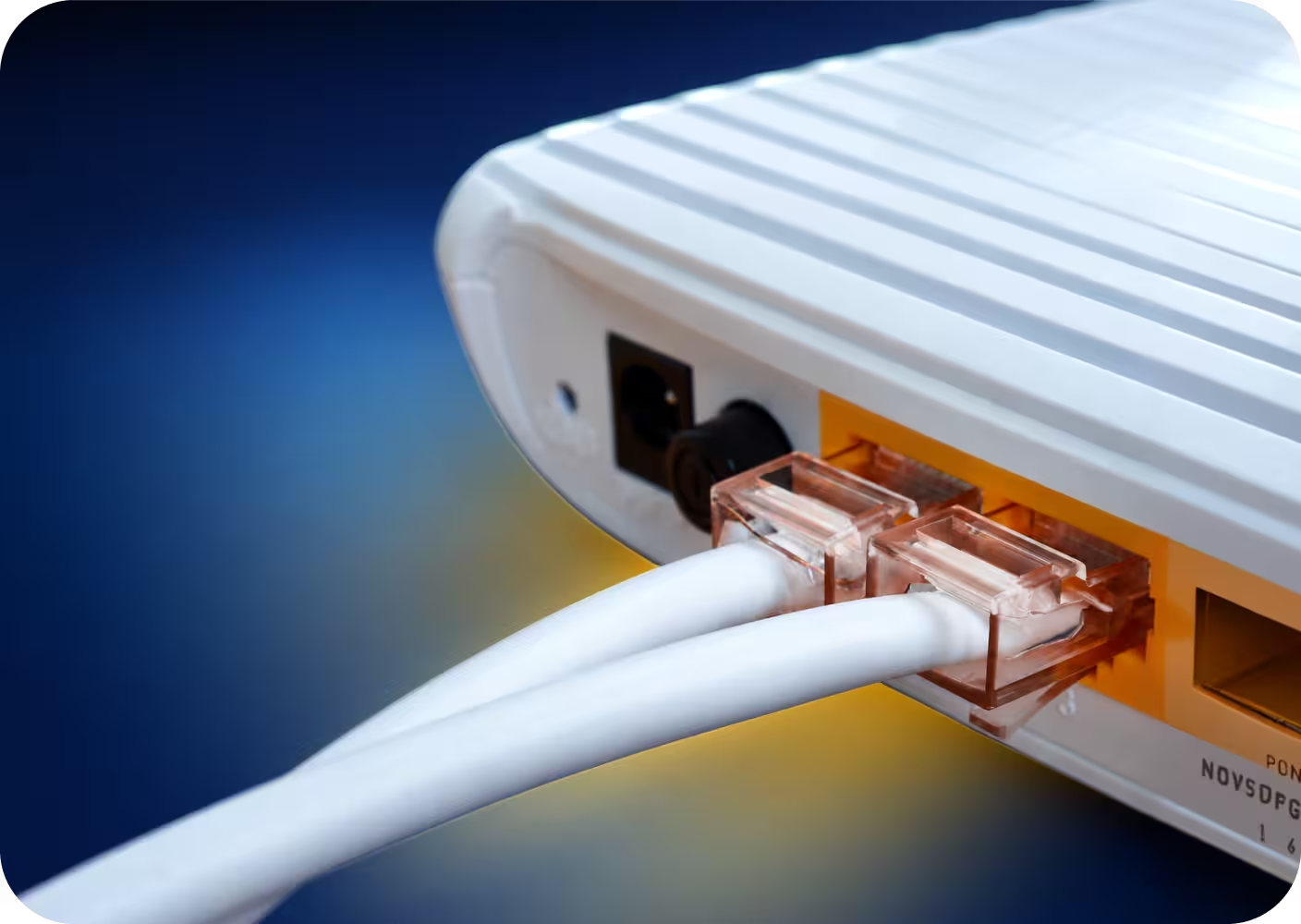
A copper Ethernet port is a small rectangular socket with eight contact positions. A compatible plug slides in, and a plastic tab clicks to hold it in place. Many ports also carry one or two indicator lights, which may report a physical link, network activity, or the negotiated speed.
1. RJ45 and 8P8C Describe Related Ideas
“RJ45” is the familiar industry term for the modular connector used with copper Ethernet, though the common physical connector is technically an eight-position, eight-contact design called 8P8C.
The distinction matters when two sockets look alike but do different jobs, and the product label or technical documentation is what confirms whether a port carries Ethernet.
2. Link and Activity Lights Provide Quick Clues
A steady light usually means an established link, and a blinking light usually means data activity, although the exact patterns vary by manufacturer. Color can signal speed or status too, so check the device manual before you treat any color as universal.
3. LAN, WAN and Switch-Port Labels Indicate Roles
A LAN port connects equipment within the local network, while a WAN port connects a router toward an upstream network or internet service. Numbered switch ports connect endpoints or other network devices, and a label such as “LAN 1” describes the role while “1G” may indicate the supported speed.
How Does an Ethernet Port Work?
An Ethernet link joins two network interfaces through a cable channel. In a typical property, that channel runs from an endpoint to a wall jack, then to a patch panel, and finally to a network switch.
1. The Devices Establish a Physical Link
Once connected, the two interfaces detect each other and establish a link, and auto-negotiation lets compatible equipment settle on a shared speed and duplex mode. The whole path decides the result, so a slower endpoint, a damaged cable, poor termination, or a limited switch port can each pull the negotiated speed down.
2. Ethernet Frames Carry Local Data
Ethernet packages data into structures called frames, and each frame carries the addressing and control information that network equipment needs to deliver it locally.
A media access control address, or MAC address, identifies an interface for local delivery, while Internet Protocol addresses handle communication across logical networks. Keeping those roles separate makes troubleshooting clearer, because a port can hold a physical link while an IP configuration problem still blocks network services.
3. Switches and Routers Perform Different Jobs
A switch learns which devices sit on its ports and forwards local Ethernet frames toward the right destination. On the other hand, a router does something broader. It moves traffic between networks, and it may connect the property to an internet service, apply security rules, and assign local addresses.
A wall jack, by contrast, only extends the cable path. The run behind it has to reach a patch panel and an active switch port before the jack can provide service.
Where Are Ethernet Ports Used in a Property?
Ethernet ports turn up in telecom rooms, offices, front desks, mechanical spaces, and equipment locations, and their placement should follow the devices a property expects to support. Switches and routers usually live in controlled equipment areas, while patch panels organize the permanent runs from those spaces out to wall jacks and fixed endpoints.
Plenty of endpoints can use Ethernet, including wireless access points, IP cameras, gateways, workstations, printers, and selected building controllers, and some draw power through the same cable.
Requirements differ from one device to the next, so the product documentation is what tells you whether a device needs Ethernet, Wi-Fi, PoE, separate power, or a product-specific service connection.
What Are the Main Ethernet Speed Classes?
Ethernet speed describes the nominal data rate a link supports, and the common copper classes are 10 Mbps, 100 Mbps, 1 Gbps, and 2.5 Gbps. A faster switch port never forces a slower endpoint to speed up; the two interfaces negotiate a shared rate the whole channel can carry.
1. 10BASE-T and Fast Ethernet Support Legacy Equipment
10BASE-T runs at a nominal 10 Mbps and now shows up mainly on older equipment and specialized endpoints. 100BASE-TX, commonly called Fast Ethernet, provides 100 Mbps and still appears in some building controls and legacy devices.
2. Gigabit Ethernet Is a Common Modern Baseline
1000BASE-T delivers a nominal 1 Gbps and uses all four twisted pairs in a standard four-pair copper cable. A compliant Cat5e channel commonly supports it up to 100 meters, provided the installation and termination are done properly.
3. 2.5 Gigabit Ethernet Adds Capacity Where Needed
2.5GBASE-T reaches a nominal 2.5 Gbps through compatible ports and cabling, which suits higher-throughput devices such as selected wireless access points. Most smart-building endpoints do not need it, so match port capacity to the actual device and uplink requirements.
Common copper Ethernet speed classes and typical property-network uses
Cat5e vs. Cat6: Which Cable Should a Property Use?
Cat5e suits many Gigabit connections, while Cat6 brings tighter crosstalk specifications and extra performance headroom for new structured-cabling projects. The suitable choice comes down to speed, distance, pathway conditions, PoE load, and expected service life, and the condition of any existing cable.
1. Cat5e Supports Many Gigabit Links
A compliant Cat5e channel can carry 1000BASE-T up to 100 meters, counting the permanent cable, the connectors, and the patch cords. Cat5e remains common in existing properties, and testing is the way to confirm whether installed runs still meet a deployment’s performance requirements.
2. Cat6 Provides Additional Headroom
Cat6 holds tighter performance specifications than Cat5e, including better crosstalk control, and it supports Gigabit Ethernet with room for higher rates under defined channel conditions.
A Cat6 label alone guarantees nothing, though, because bend radius, termination, component quality, and installation practice all shape the finished channel.
3. Building Conditions Shape Cable Selection
Permanent horizontal runs generally use solid-conductor cable, while patch cords use stranded conductors for flexibility. Riser and plenum jacket ratings tie to the installation pathway and applicable building requirements, so a qualified low-voltage professional should select materials for the specific environment.
Standards including ANSI/TIA-862, ANSI/TIA-569, ANSI/BICSI 007, and ISO/IEC 11801-6 inform intelligent-building cabling design, and the project specification and local requirements determine which provisions apply.
Cat5e and Cat6 compared for property-network planning
What is Power over Ethernet (PoE)?
Power over Ethernet (PoE) carries network data and direct-current power over the same compatible cable, which can remove a separate electrical connection at some endpoint locations. Common PoE devices include wireless access points, IP cameras, phones, and selected sensors, and both the network source and the endpoint have to support a compatible PoE standard.
1. PSE Supplies Power to a Compatible PD
Power sourcing equipment, or PSE, delivers power through the Ethernet connection, with a PoE switch and a PoE injector being the common examples. The endpoint that receives it is a powered device, or PD, and compatible equipment detects and classifies the connection before normal power delivery begins.
2. PoE Standards Support Different Power Needs
IEEE 802.3af, 802.3at, and 802.3bt define the PoE capabilities, and they support different device power requirements and delivery methods. Confirm the standard each endpoint needs, and make sure the switch supports it on the assigned port.
3. Total PoE Budget Matters Across the Switch
A switch may offer PoE on many ports while carrying a limited total power budget, so adding up every endpoint’s requirement is what tells you whether the switch is sized correctly.
Cable bundles also generate heat during remote power delivery, and TIA TSB-184 and ISO/IEC 29125 offer relevant guidance for balanced cabling and remote power.
Ethernet vs. Wi-Fi for Smart-Building Deployments
Ethernet gives an endpoint a dedicated cable path to network equipment, while Wi-Fi connects compatible devices through a shared radio environment. Moreover, ethernet brings predictable link conditions and PoE for fixed endpoints, whereas Wi-Fi brings mobility and flexible placement wherever coverage reaches.
Ethernet and Wi-Fi compared for smart-building deployments
Most properties use both rather than picking one. Ethernet can carry the switches and access points, and Wi-Fi can serve mobile tools and wireless building devices.
Rather than applying one connection type everywhere, evaluate each endpoint, since reliability goals, power access, maintenance, security policy, and installation cost all pull the decision in different directions.
How Ethernet Infrastructure Supports Property Operations
Structured cabling gives you an organized path between equipment rooms and endpoints, and clear labels let property and IT teams find a fault without tracing every cable again. The payoff shows up during a deployment.
Picture a multifamily property preparing new wireless access points. The team documents wall jacks, patch-panel positions, and switch ports before the installers arrive, and testing catches two inactive runs early. Correcting those runs before equipment goes on the wall keeps the delays out of the schedule.
The same discipline carries over to cameras, gateways, controllers, and workstations. Accurate records also make ownership clear, so everyone knows who handles the cable, the switch, the endpoint, and the network configuration.
How SmartHQ™ Service Uses an RJ45 Service Connection
SmartHQ™ Service uses an RJ45 cable to connect a SmartHQ module to an appliance service port, and the familiar connector shape does not make it an Ethernet network connection. That distinction prevents a costly assumption. Property teams should follow the SmartHQ™ Service instructions rather than plugging the appliance service port into a LAN switch.
It connects a phone to GE Appliances for real-time diagnostics, and it supports guided tests, firmware updates, service documentation, and parts resources. Selected functionality needs a live appliance connection, and the mobile workflow also uses Bluetooth for some features.
How Should Property Managers Evaluate Ethernet Readiness?
A useful readiness audit follows the whole connection from end to end. That means the endpoint, the patch cable, the wall jack, the permanent run, the patch panel, the switch port, and the network configuration.
1. Inventory Ports and Cable Routes
Record wall-jack labels, endpoint locations, patch-panel positions, and switch-port assignments, and note which ports are active versus unused. Read the category printed on accessible cable jackets rather than guessing performance from how a connector looks.
2. Confirm Speed and PoE Requirements
Document the network speed each endpoint needs, and confirm whether the device requires PoE and which standard it uses. Count the switch ports you need, leave room for planned equipment, and total the PoE budget across every powered endpoint.
3. Test and Document the Complete Channel
Verify continuity and negotiated link speed before installation, and expect cable certification on projects with formal performance requirements. Update the diagrams and port records after any change, because good documentation turns future troubleshooting into a bounded task.
4. Assign Ongoing Ownership
Decide who manages the permanent cabling, the switches, the network configuration, and the endpoints, and set a clear escalation path for inactive ports and intermittent links.
That responsibility map helps staff route issues quickly, and it reduces accidental changes inside shared equipment rooms.
Common Ethernet Port Problems and Troubleshooting Steps
Work the physical link before you touch any network settings, because a loose plug, a damaged patch cord, or an inactive wall jack can take a connection down completely. The list below moves from the most common physical faults toward configuration issues:
- No link light: Reseat the plug and inspect both connected ports.
- Inactive wall jack: Trace the run to its patch-panel and switch connections.
- Unexpectedly slow speed: Check the negotiated rate, cable condition, and endpoint limits.
- Intermittent link: Inspect the terminations and test with a known-good patch cord.
- PoE device stays off: Confirm the PoE standard, the port setting, and the total switch budget.
- Network unavailable: Check the IP configuration after you confirm the physical link.
- Unfamiliar RJ45-shaped port: Read the equipment label and documentation before connecting anything.
Some problems belong with specialists. Escalate damaged permanent cabling, repeated negotiation failures, and switch-configuration issues to qualified IT or low-voltage professionals.
Ethernet Works Best as a Complete, Documented Link
An Ethernet port is only one part of a larger channel, and both interfaces, every connector, and the cable path all shape the final link.
Property managers can get ahead of a smart-building deployment by matching endpoint requirements to documented infrastructure, since port inventory, cable testing, and PoE planning surface the gaps before installation starts.
Connector identification belongs in that same process. An RJ45-shaped appliance service port needs product-specific instructions, even when it looks exactly like a network socket.
Still troubleshooting laundry equipment by trial and error?
- Real-time fault codes read straight from the appliance
- Isolated component testing without a full teardown
Real-time
leak monitoring